How to Install FreeNovaTool Games as an App on Your Phone
No app store needed: add the games to your home screen in a few taps on Android or iPhone, and open them full screen like any other app.
You can play every game in your browser, but you can also put the site on your home screen. It then opens full screen, without the browser bars, like any other app — and it takes almost no space on your phone. No app store and no download are needed.
On Android (Chrome)
1. Open the site in Chrome.
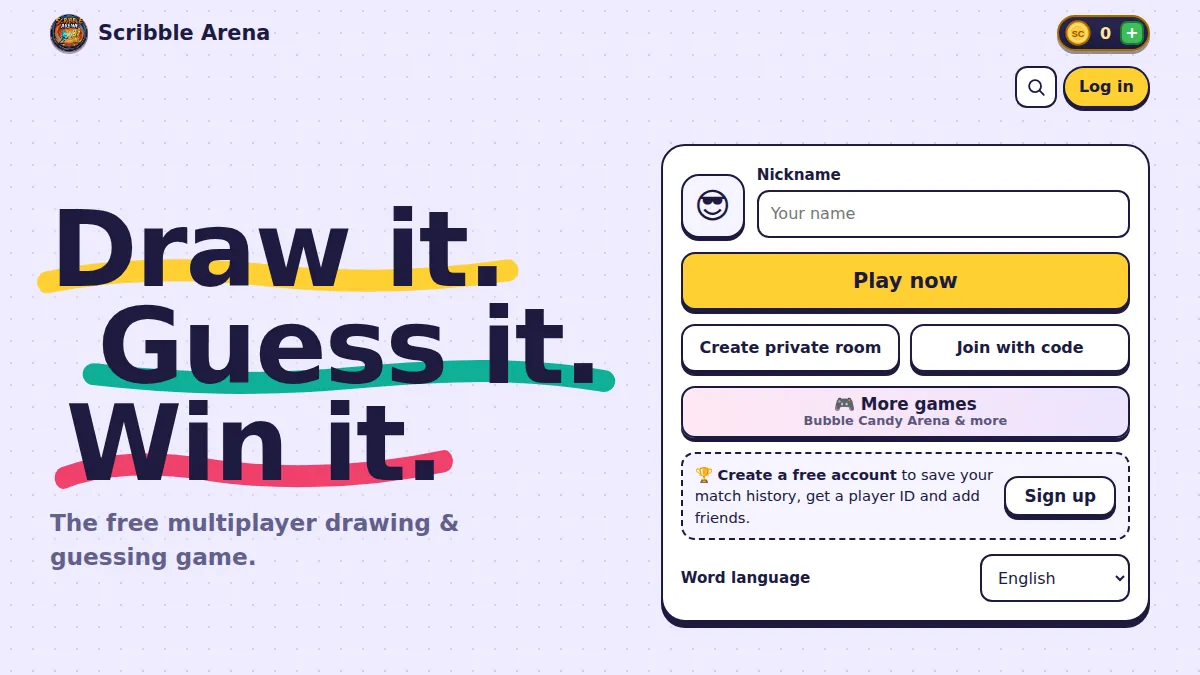
2. Tap 📲 Install app on the Scribble Arena page — or open the Chrome menu ⋮ and tap Install app or Add to Home screen.
3. Tap Install. The icon appears on your home screen and in your app list.
On iPhone and iPad (Safari)
- Open the site in Safari (other browsers on iPhone cannot add apps).
- Tap the Share button — the square with an arrow pointing up.
- Scroll down and tap Add to Home Screen.
- Tap Add. The icon appears on your home screen.
Why install it
- Full screen — more room for drawing, puzzles and building
- One tap to play — no typing the address
- Tiny — it uses far less space than a normal app
- Always up to date — it updates itself; there is nothing to download
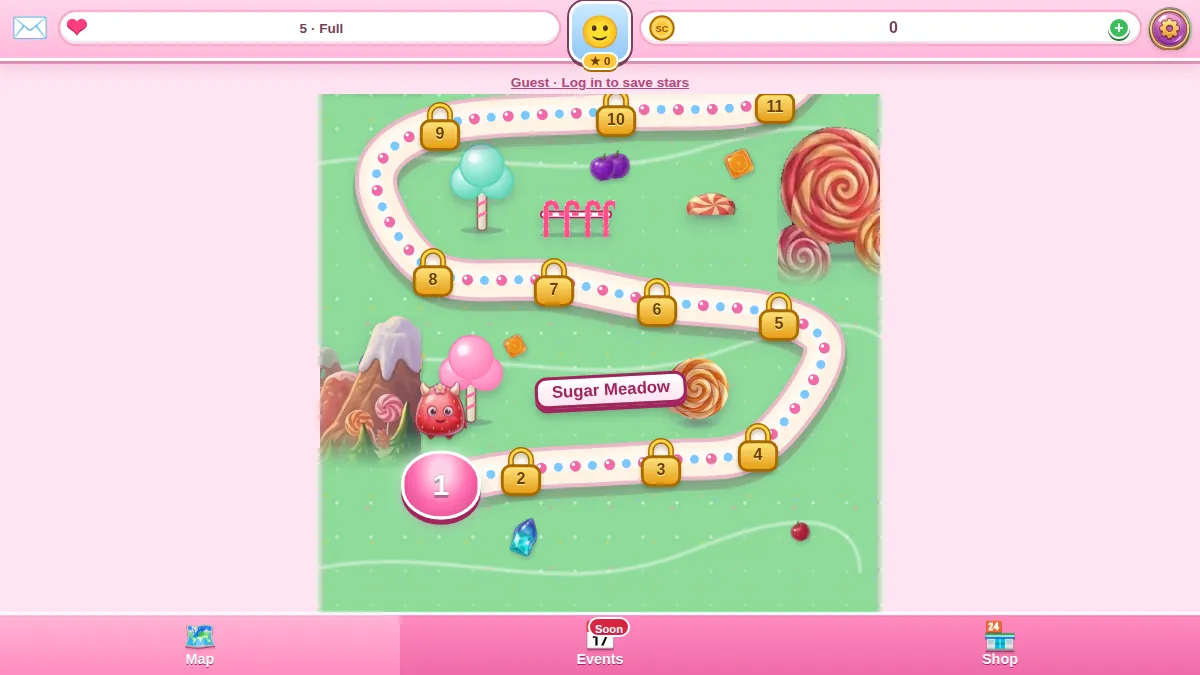
All the games in one app
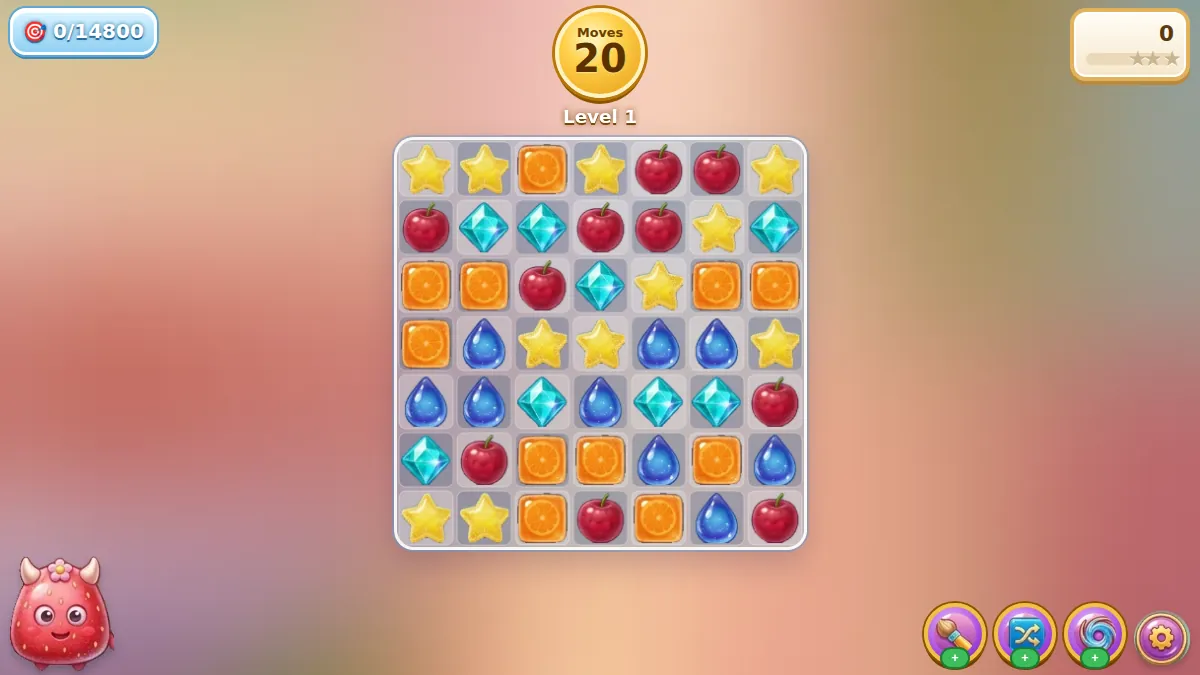
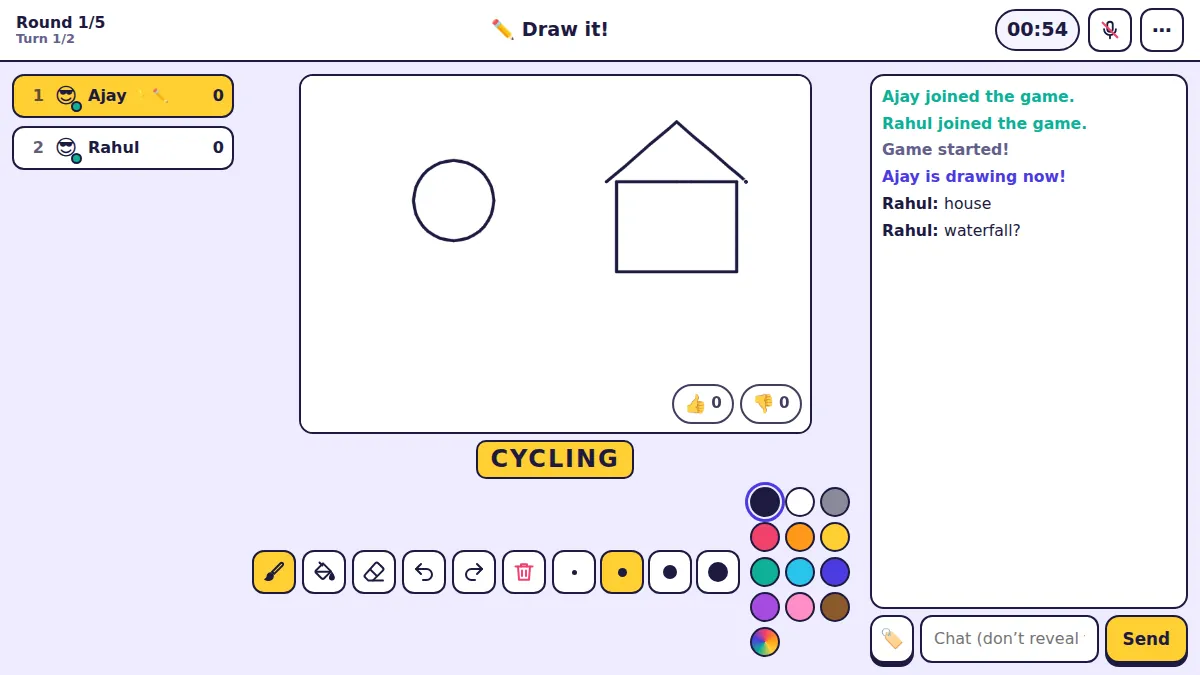
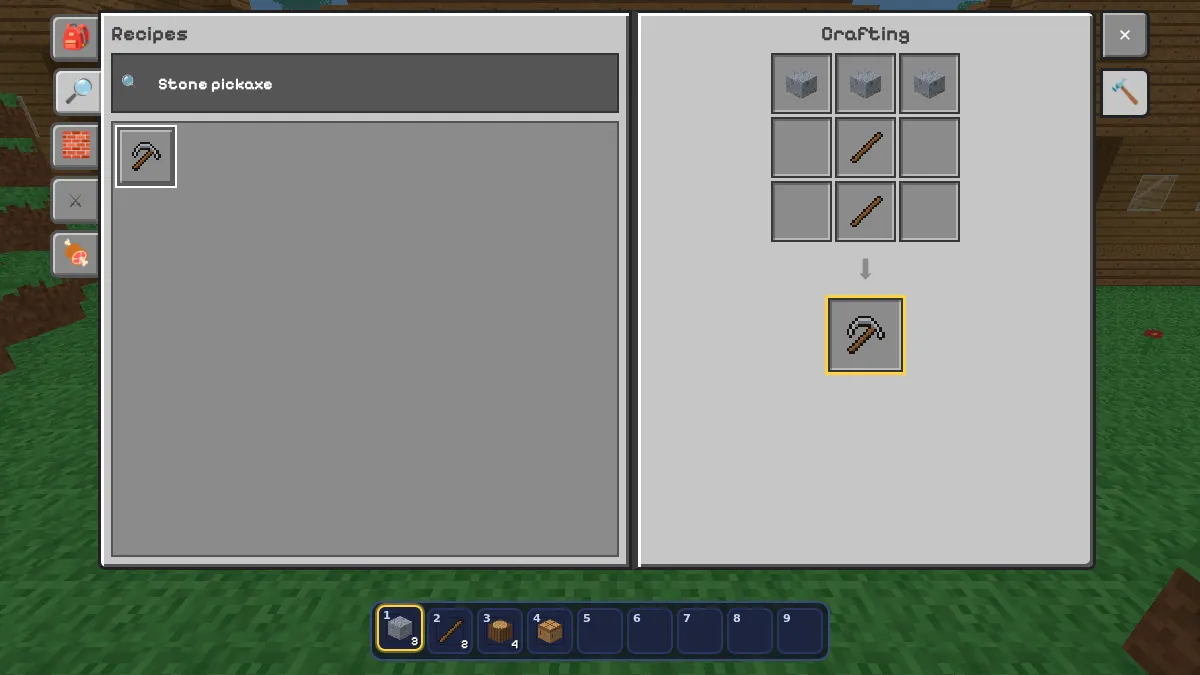
The app opens on the games page, so Scribble Arena, Bubble Candy Arena and Scribble Craft Arena are all one tap away. Your account and progress are the same as in the browser.
Common questions
- Is the app free? Yes — it is the same free website, just opened from your home screen.
- Do I need an account? No. You can play as a guest; a free account keeps your progress on every device.
- Does it work on a computer too? Yes. In Chrome or Edge on a computer, look for the install icon in the address bar.
- Will it use a lot of data? The games are kept light so they load on mobile data, and pictures are saved by your phone after the first visit.
- Why don’t I see the Install button? It only appears in browsers that support installing. On iPhone use Safari’s Share → Add to Home Screen instead.