How to Chat, Send Stickers and Talk with Friends While You Play
The game chat doubles as the guessing box. Here is how chat, stickers, voice and private messages work in Scribble Arena.
Talking is half the fun of a drawing game. Scribble Arena gives you four ways to do it: the room chat, stickers, voice chat inside the room, and private messages with friends outside the game.
The chat box is also where you guess
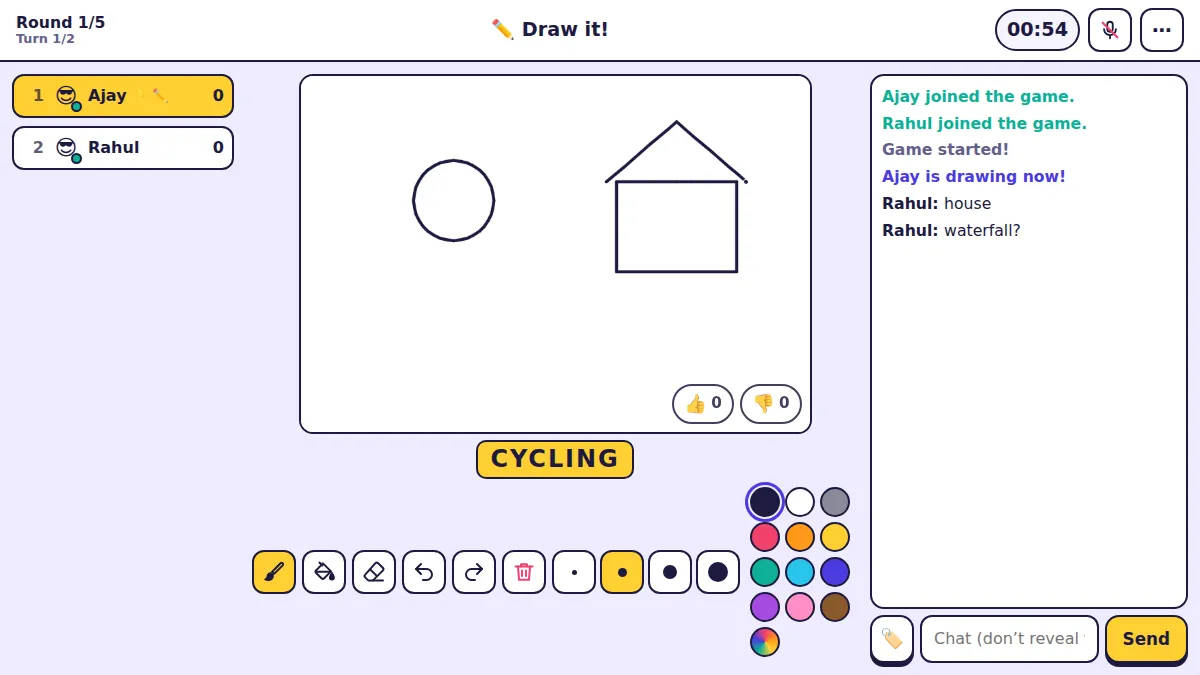
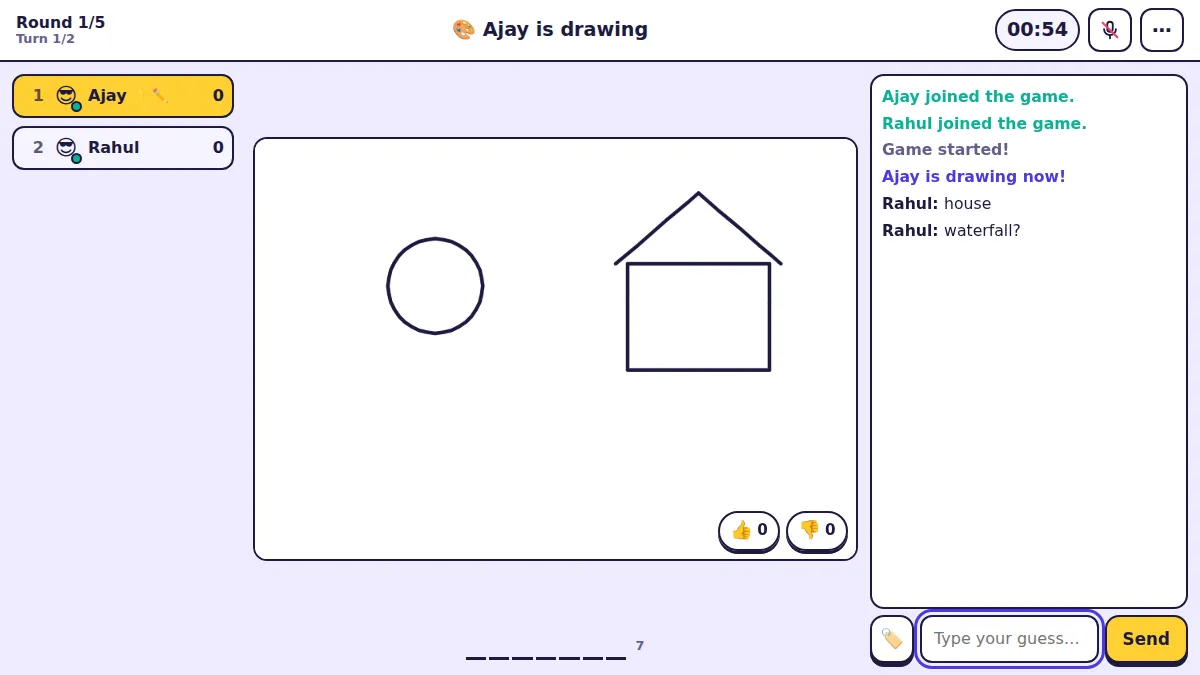
On the right of the canvas is the room chat. When someone else is drawing, the box says Type your guess… — anything you send counts as a guess, and the right word is hidden from everyone else so you do not give it away.
When you are the one drawing, the box changes to remind you not to reveal the word. You can still chat, just keep the answer to yourself.
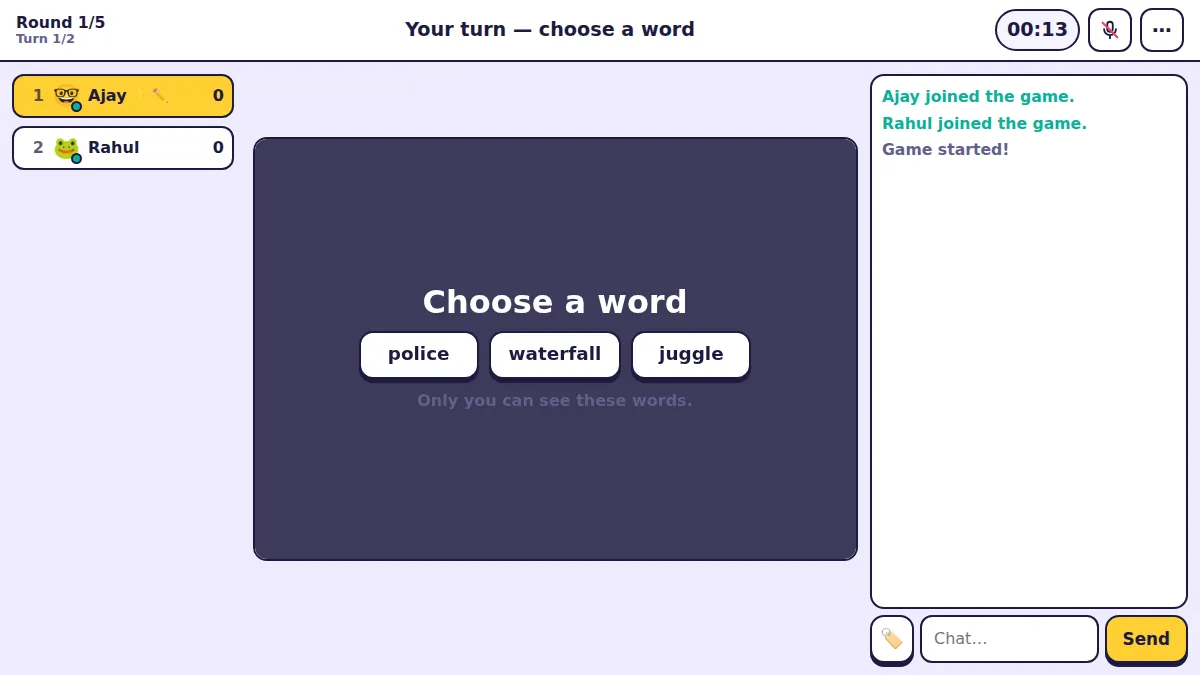
Stickers
The small button to the left of the chat box opens your stickers. Two packs are free for everyone — animated reactions and cute doodles — and more packs can be unlocked from the shop.
Stickers are perfect for reacting to a great drawing (or a terrible one) without filling the chat with words.
Voice chat inside the room
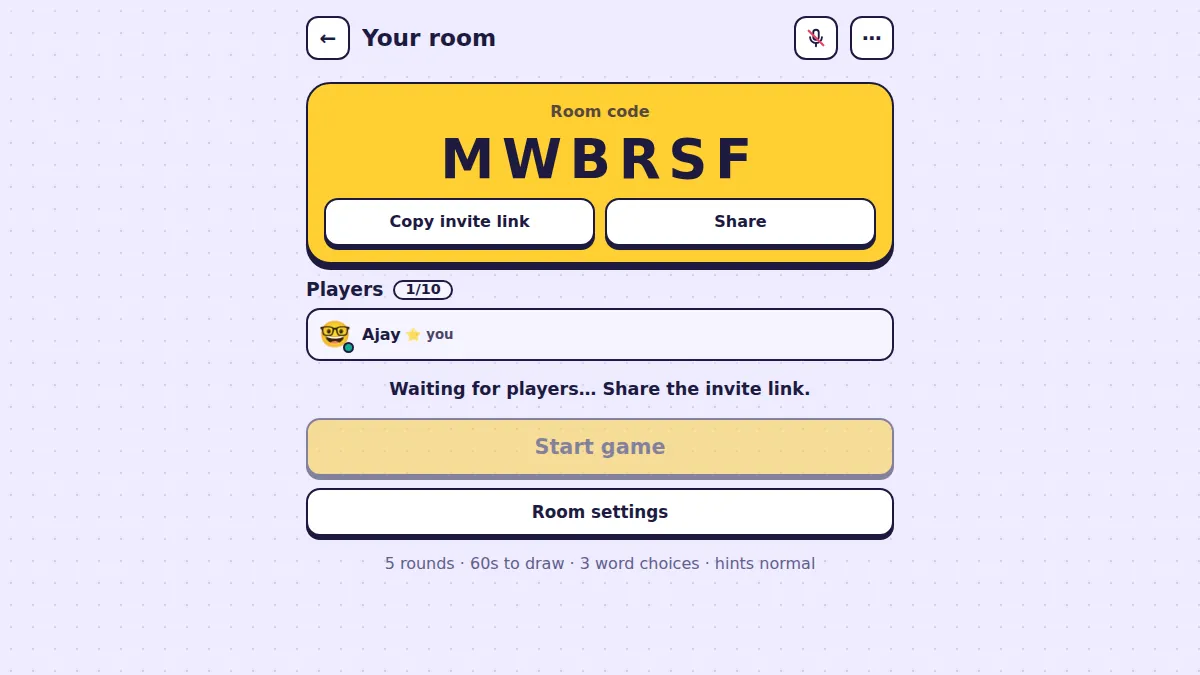
If the room owner left 🎤 Allow voice chat in this room switched on, a microphone button sits at the top of the room. Tap it to join the voice chat; your browser asks once for microphone permission.
Voice works best with headphones — it stops the game sounds and your friends’ voices from echoing back through your mic.
Friends and private messages
With a free account you get a friends list and Messages. Add people with Find players, and once they accept you can chat with them privately at any time — even when neither of you is in a game. A dot on the bell icon tells you about new friend requests and messages.